All Access Pass 50% Off — Limited Time

All Access Pass 50% Off — Limited Time

All Access Pass 50% Off — Limited Time

Construction Bid Planner

Learn how to use your Construction Bid Planner in Excel or Google Sheets. Follow the quick start steps below, or browse the FAQs and troubleshooting tips for more guidance.

Template Overview

Get to know how each tab works. Every sheet in your template has a clear purpose, from setup to the final outputs that keep your project organized.

Planner Tab

Purpose

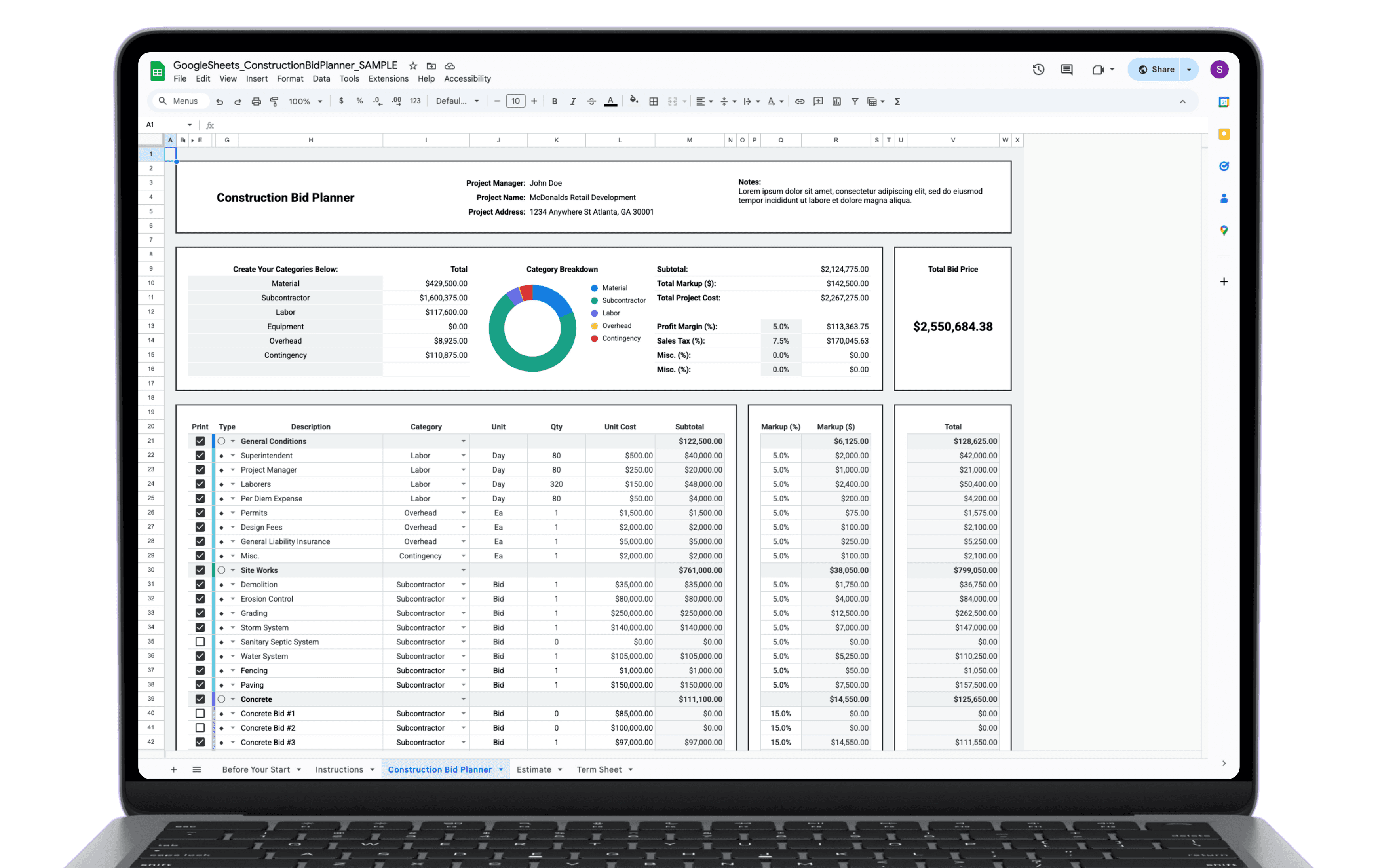
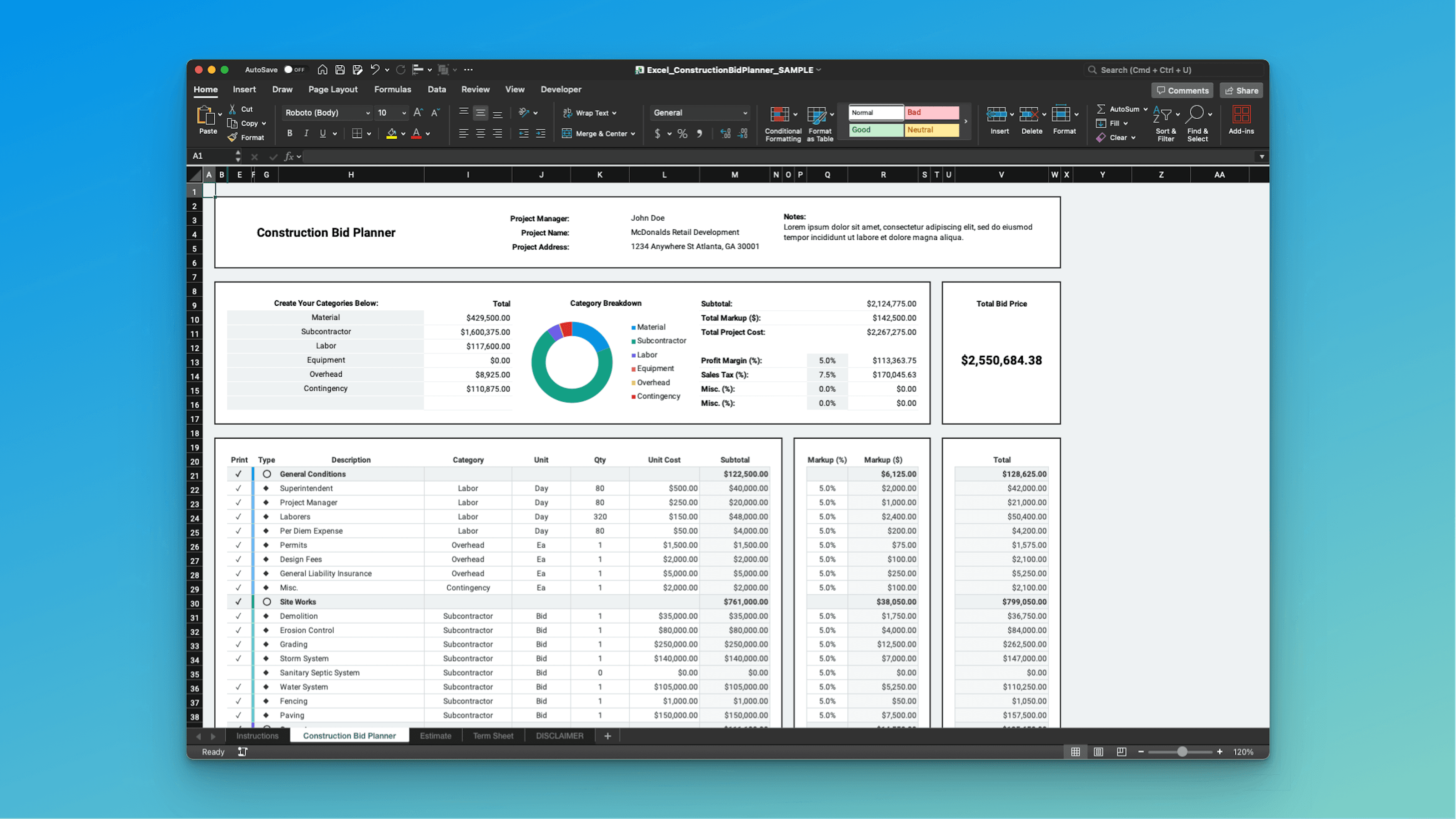
This tab is where you build your entire bid.
🧱 Every section header, every line item, and every cost detail starts here.

Once your bid is organized on the Planner Tab, the spreadsheet automatically calculates subtotals, applies markups, and prepares items for the Estimate Tab.

Why It Works

Each row includes built in formulas, dropdowns, and consistent formatting.
🎯 You focus on the numbers, the template handles the structure.

💡 All final estimate values come from this tab. Think of it as the engine of the entire template.

Try This in Your Template

Set Project Details
📝 At the top, enter the project name, address, and preparer name.
These details appear automatically in your final estimate.

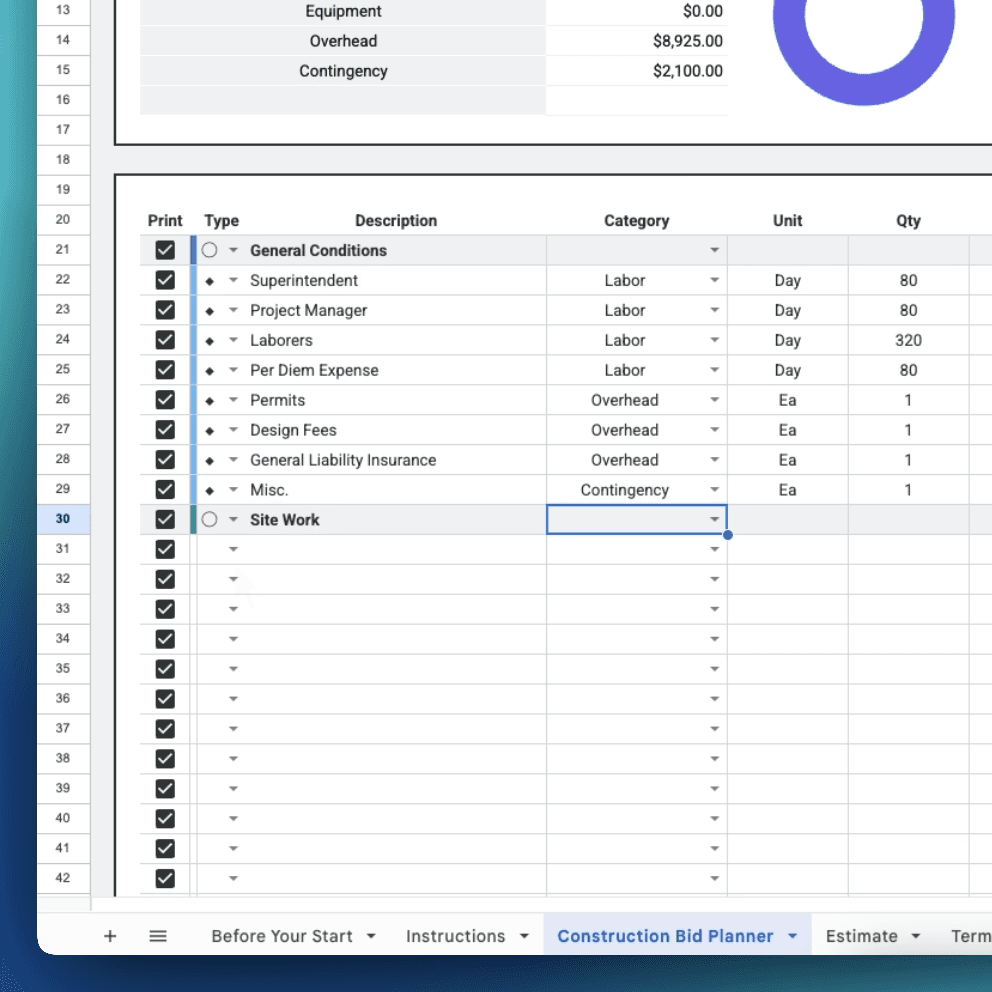
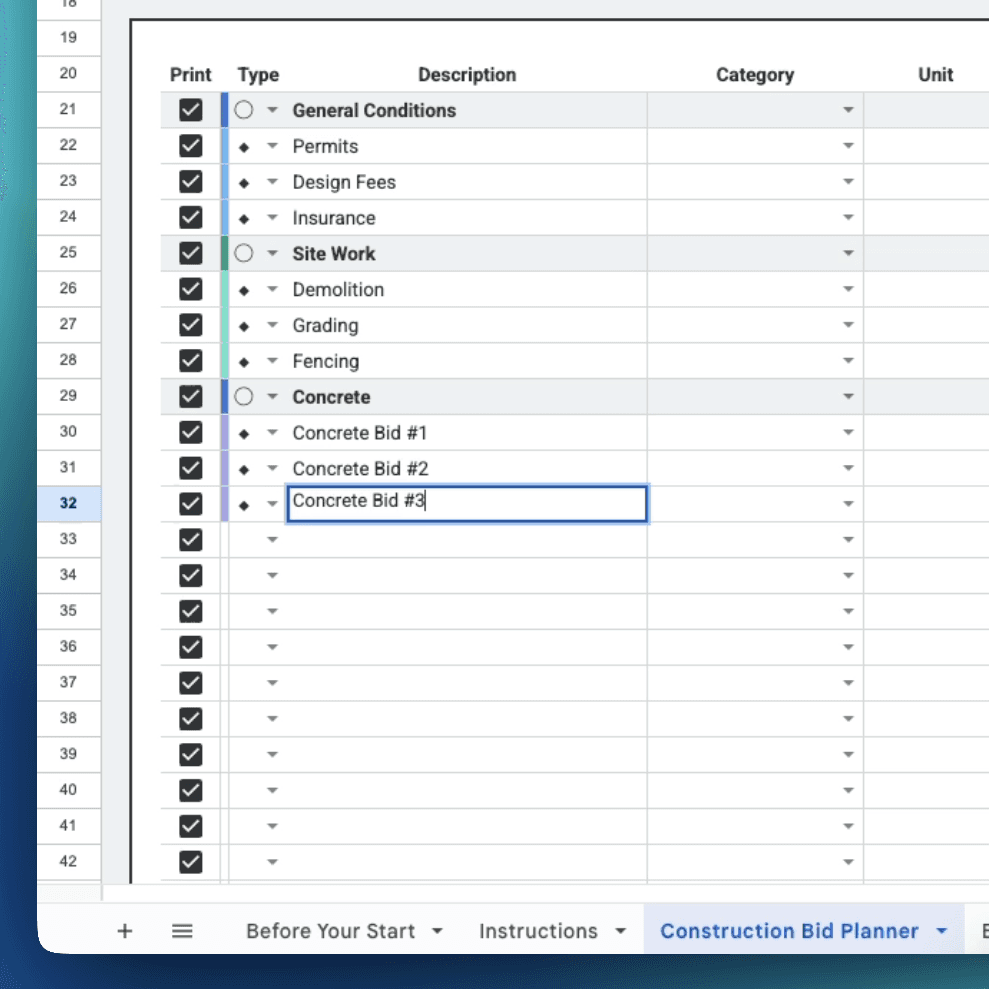
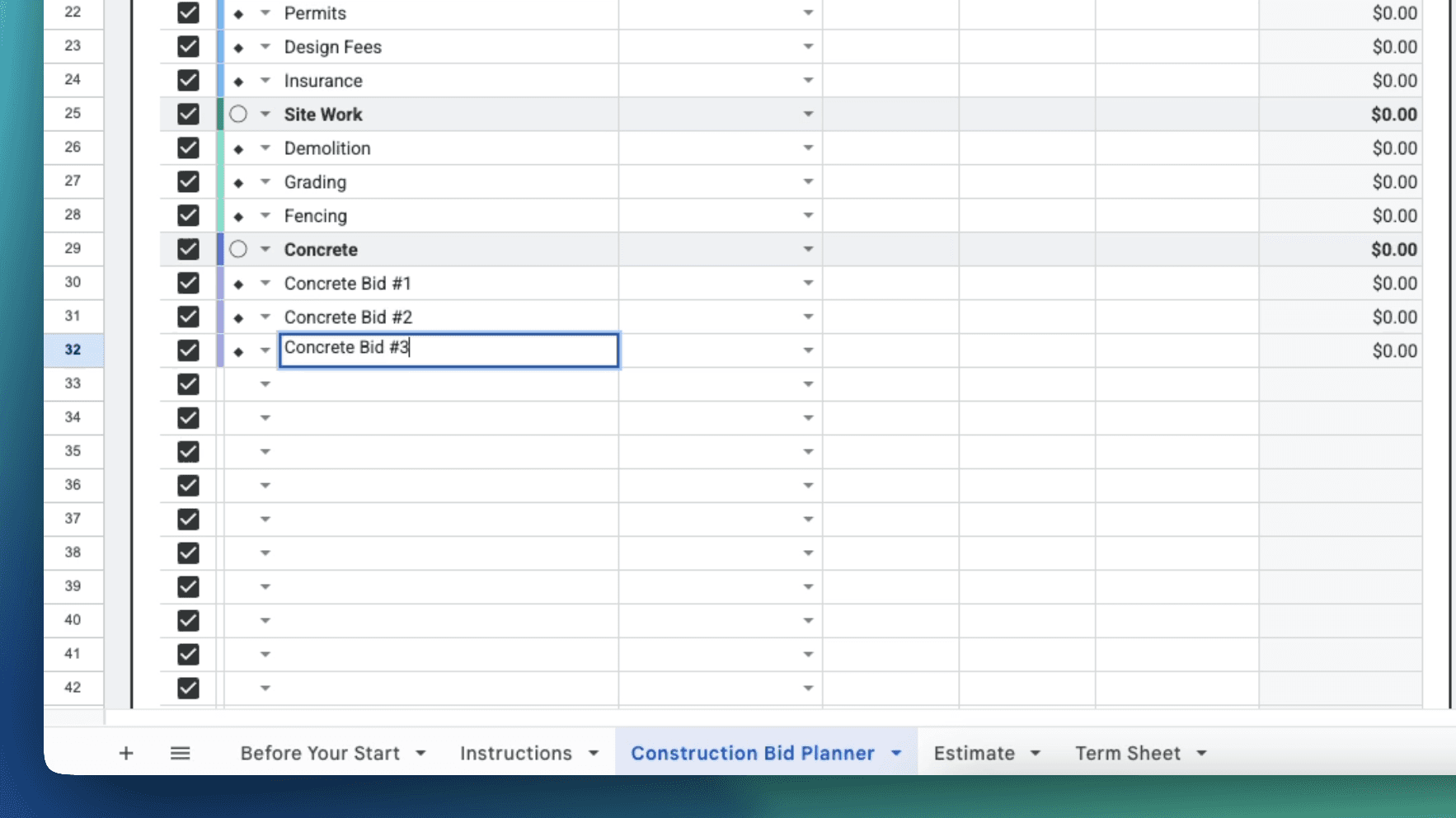
Define Each Line with a Type
Choose the Type for each row:
creates a bold section header
creates a standard line item

Use ◯ for major construction divisions such as General Conditions, Site Work, Concrete, Carpentry, Electrical, Plumbing, or Finishes.
Use ◆ for the items inside each section.

Fill Out Item Details
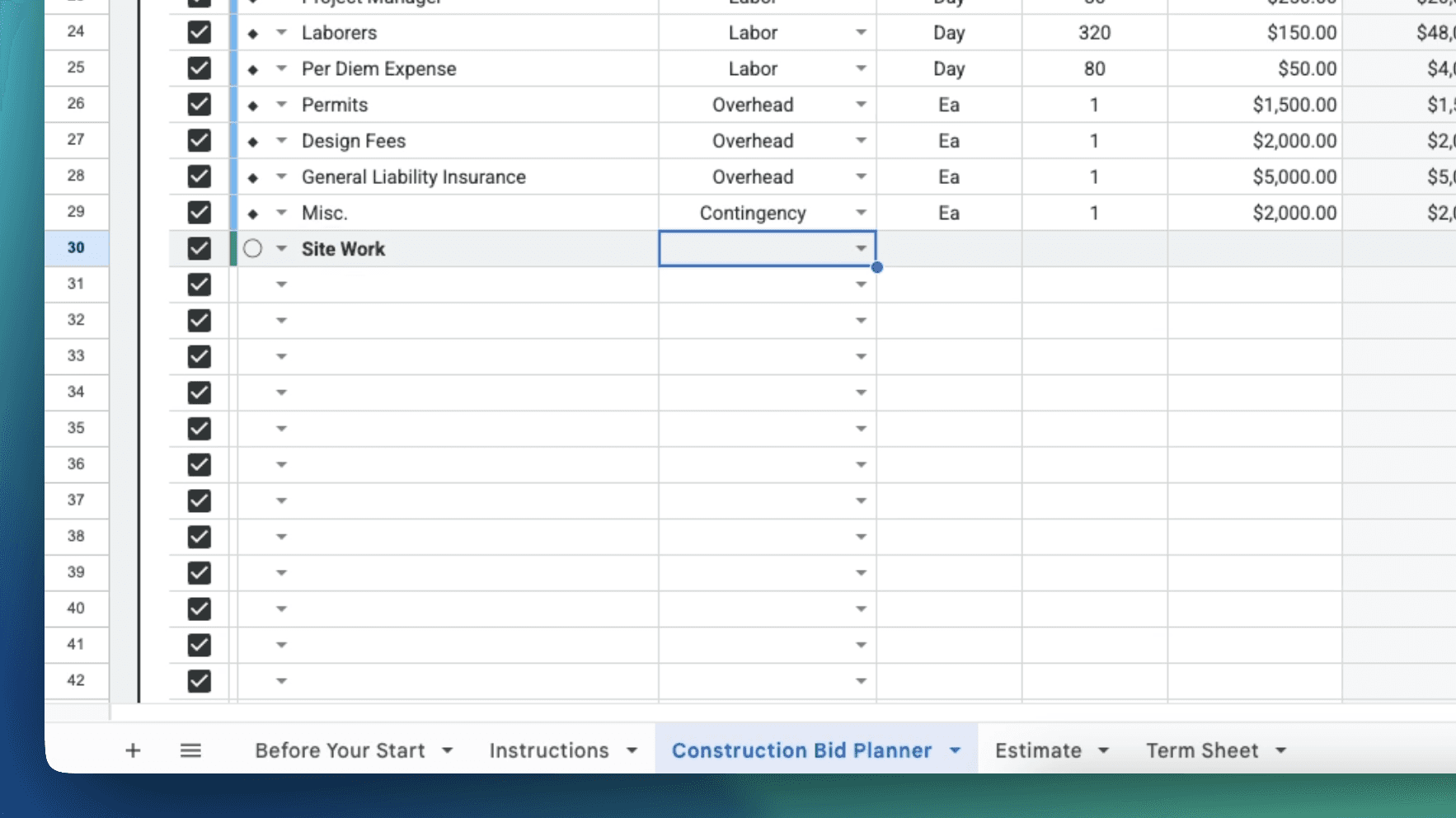
For each ◆ line:
• Write a clear description
• Pick a category from the dropdown
• Select a unit of measure (Day, Each, LF, SF, etc.)
• Enter quantity and unit cost
➡️ The Subtotal calculates on its own.

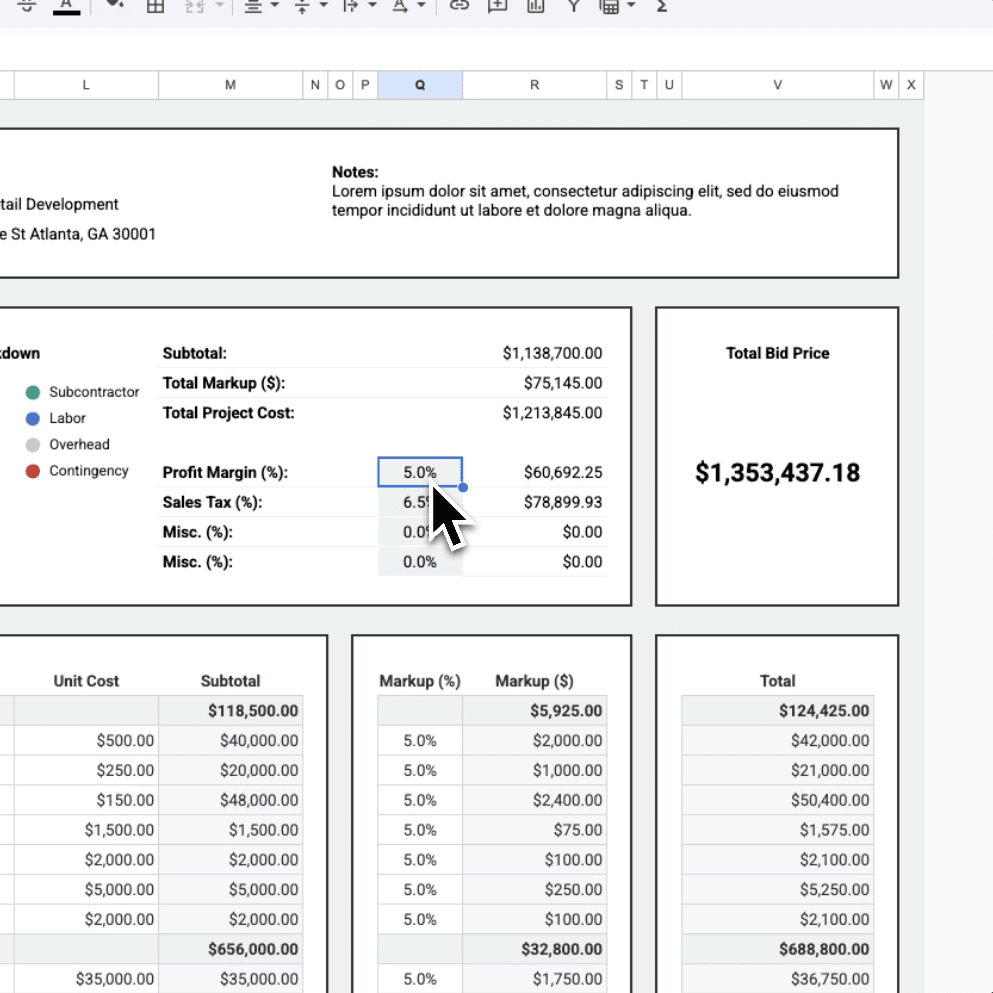
Add Markup if Needed
💵 Want to add profit to a specific item?
Type a percentage in the Markup column.
The Total updates immediately.

Use the Print Column
✔️ Each row has a checkbox.
Check the box next to any item you want included on your Estimate Tab.
Only checked items appear in the final estimate.

Add New Rows Properly

When you need more space:

  1. Insert a blank row

  2. Copy an existing working row

  3. Paste it into the blank row

  4. Replace the placeholder text with your new item

📌 Copying ensures all formulas, formatting, and dropdowns stay intact.

Tips for Success

• 🔄 Always copy an existing row when adding new ones
• 🧩 Use ◯ headers to keep your bid well organized
• 👁 Hide unused rows instead of deleting them
• 📊 Keep all pricing edits on this tab so your estimate stays accurate

Estimate Tab

Purpose

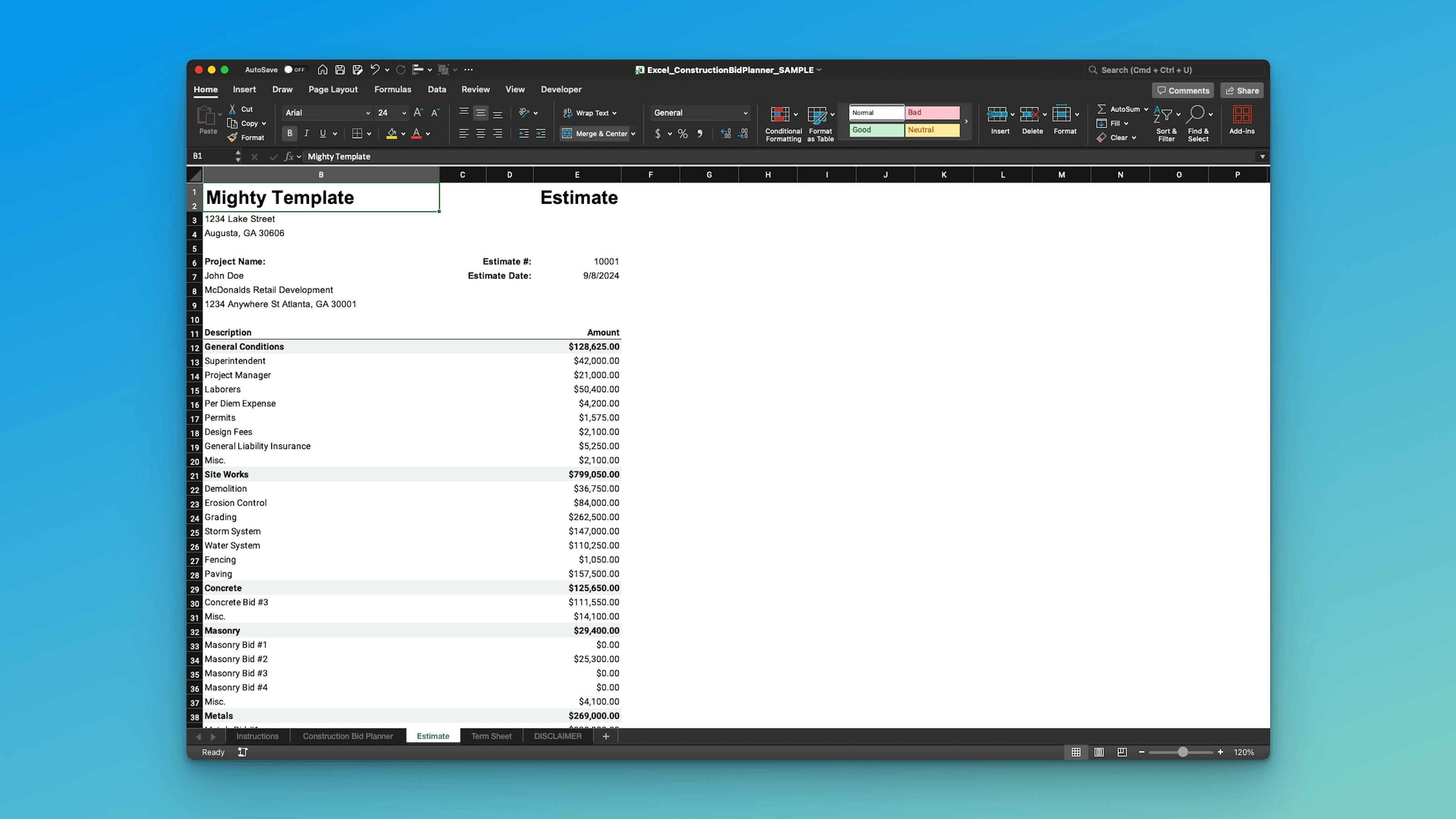
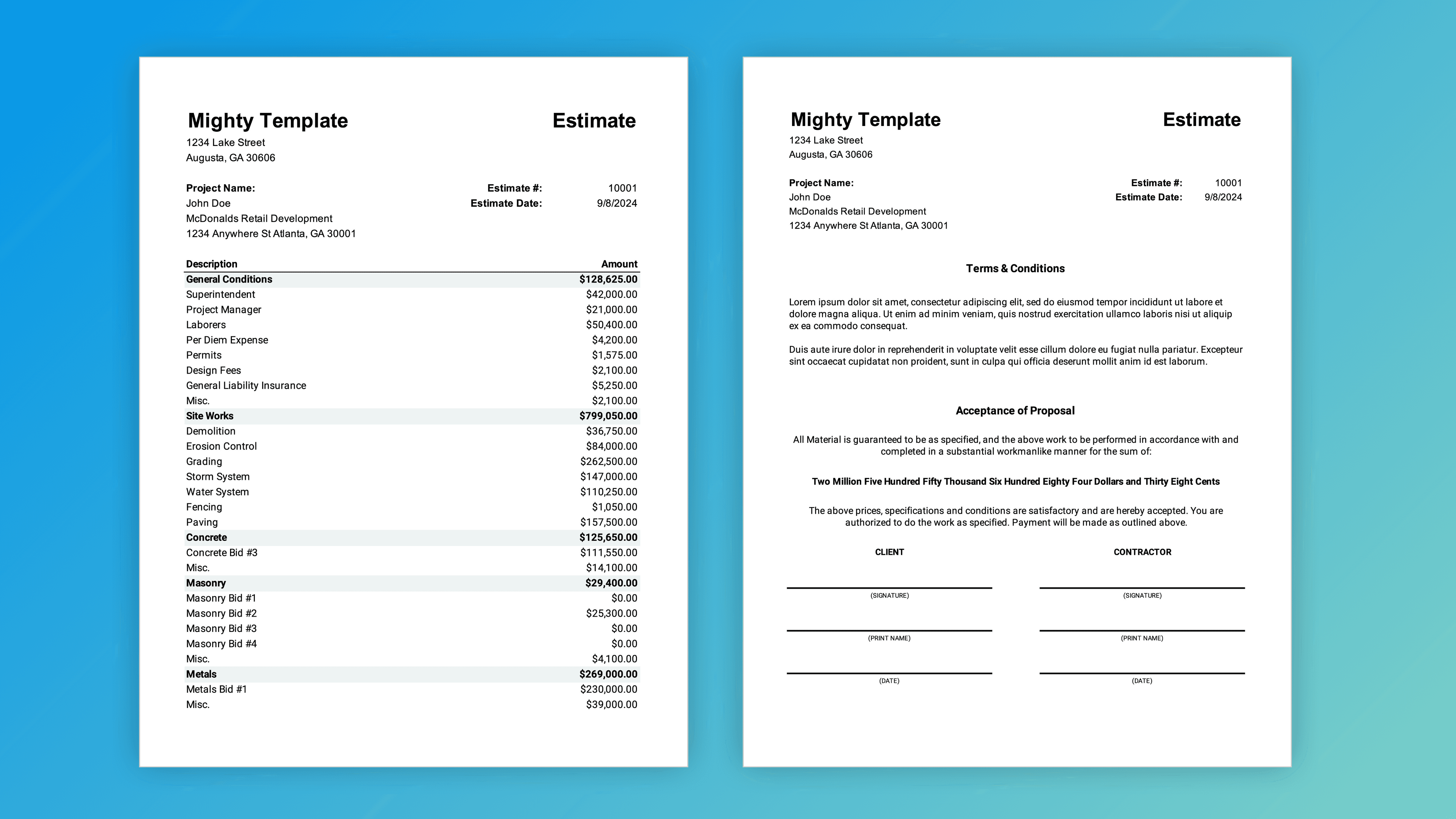
This tab creates your client ready estimate. Everything you select from the Planner Tab appears here automatically with clean formatting.

Why It Works

The Estimate Tab is fully formula driven. It shows only the items you choose and updates instantly whenever the Planner Tab changes.

⚠️ Important: Never edit this tab directly. All changes should be made on the Planner Tab.

Try This in Your Template

Select Items on the Planner Tab
✔️ Check the box in the Print column for every line item you want included.
As soon as you check it, the item appears on the Estimate Tab.

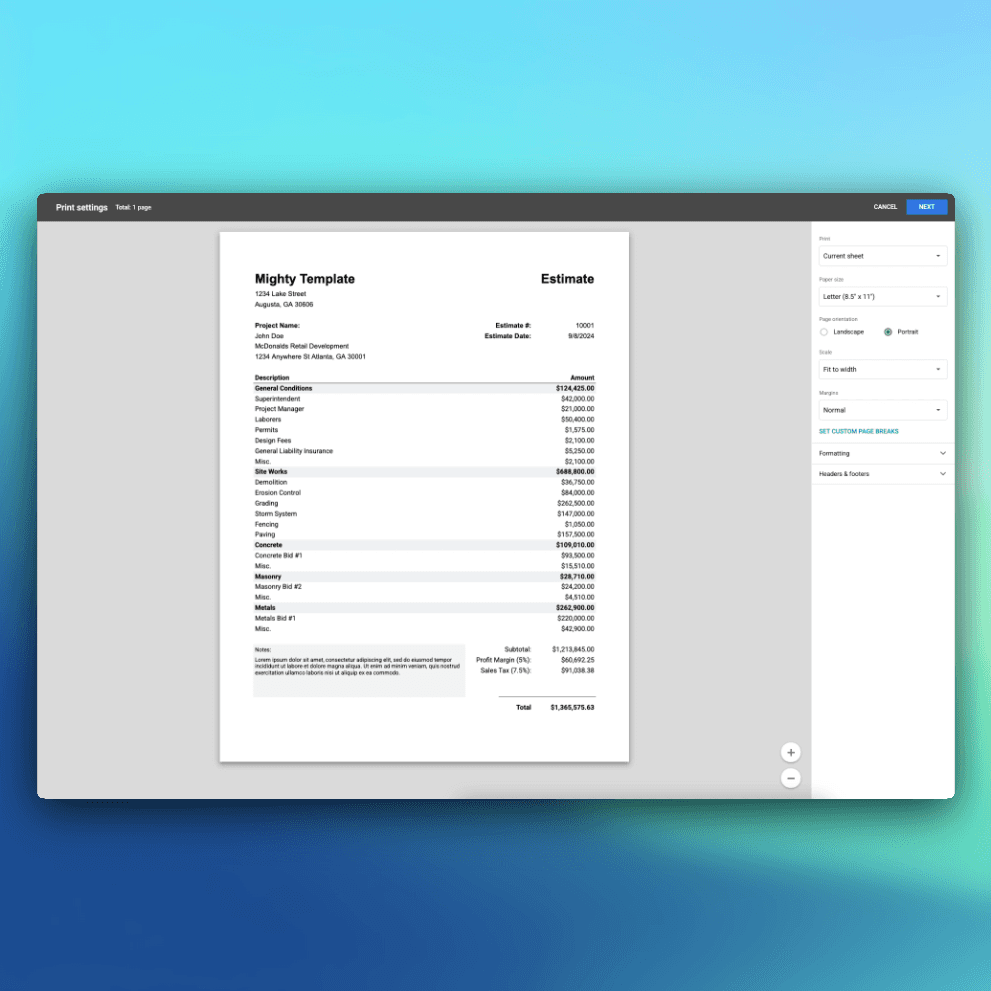
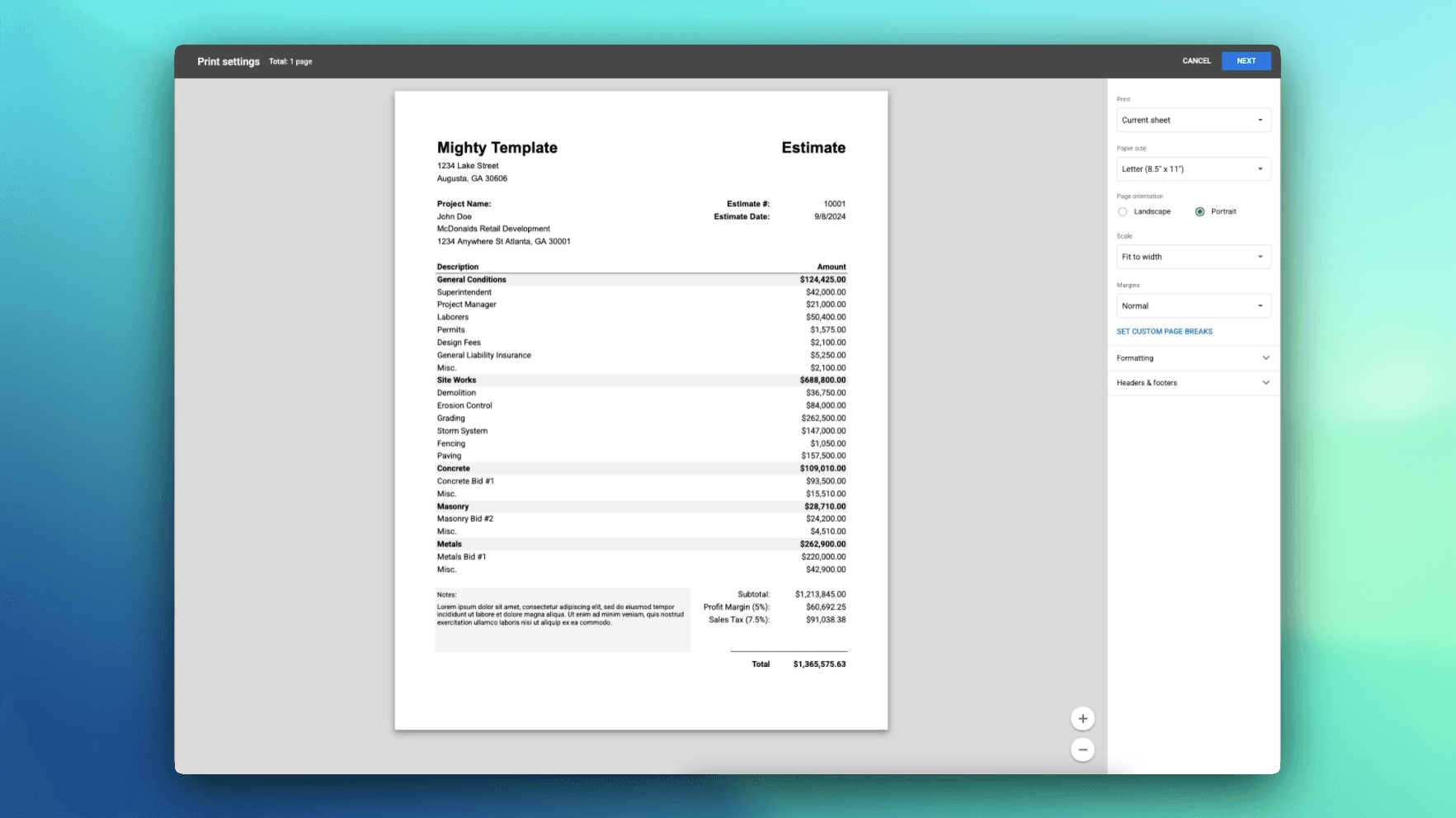
Review the Estimate Layout
🔍 Look through the formatted estimate.
Your project name, address, and preparer info come directly from the Planner Tab.

💡 If something looks wrong, revisit the Planner Tab. It controls everything shown here.

Hide Empty Rows for a Clean PDF
If you notice blank rows between your last item and the totals:
• Click the row number
• Right click
• Select Hide

Hiding preserves the formulas.
Deleting them breaks the layout.

Update Project Information
📝 Need to change the project name or address?
Update those fields on the Planner Tab and the Estimate Tab updates automatically.

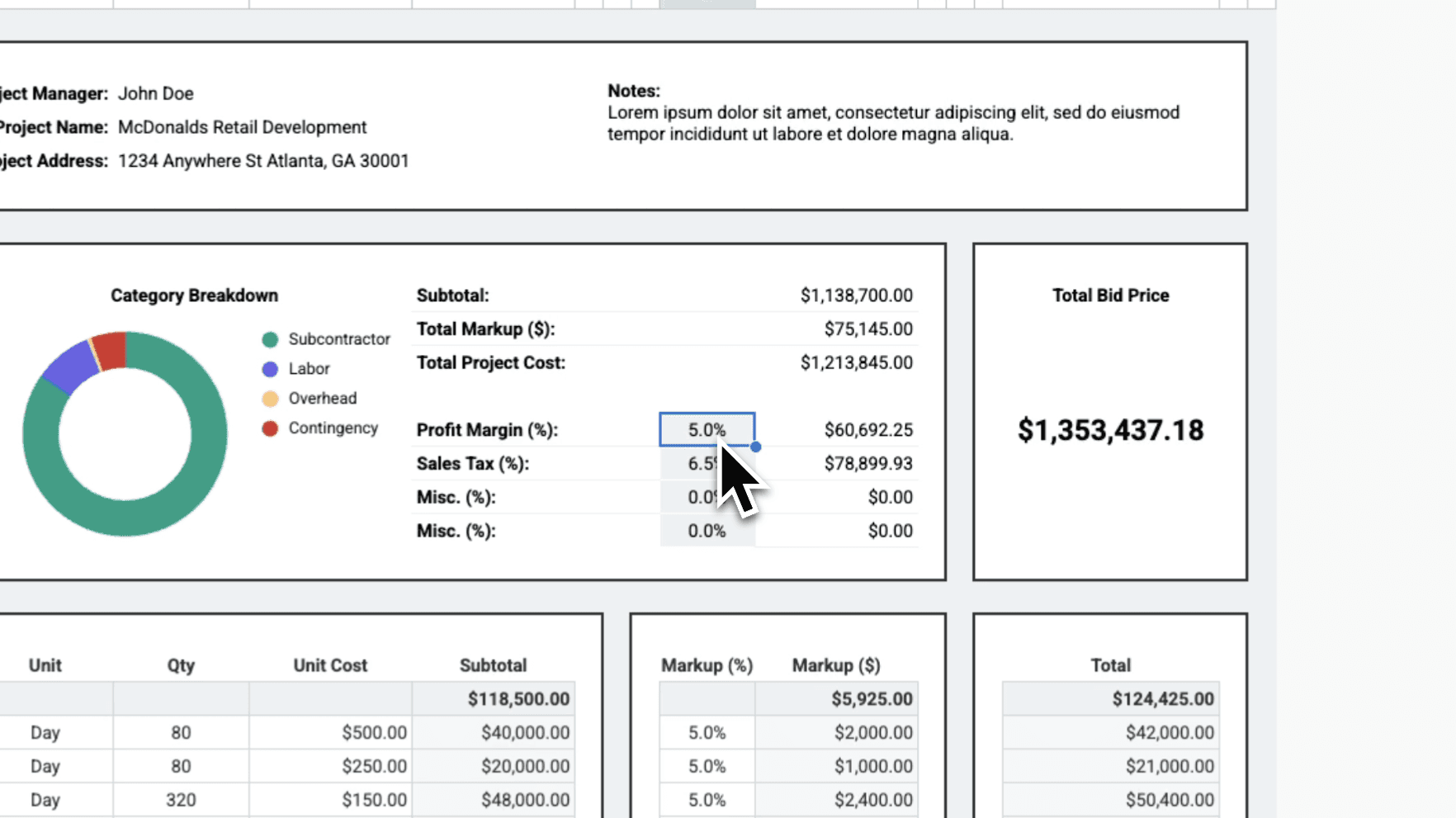
Check the Final Totals
💰 Review the subtotals, markup amounts, and final total.
Any tweaks you make on the Planner Tab appear here instantly.

Tips for Success

• 🛠 Edit only on the Planner Tab
• ✔️ Use the Print column to choose what shows on the estimate
• 👀 Hide unused rows rather than deleting
• 📤 Export to PDF when sending to your client

Termsheet Tab

Purpose

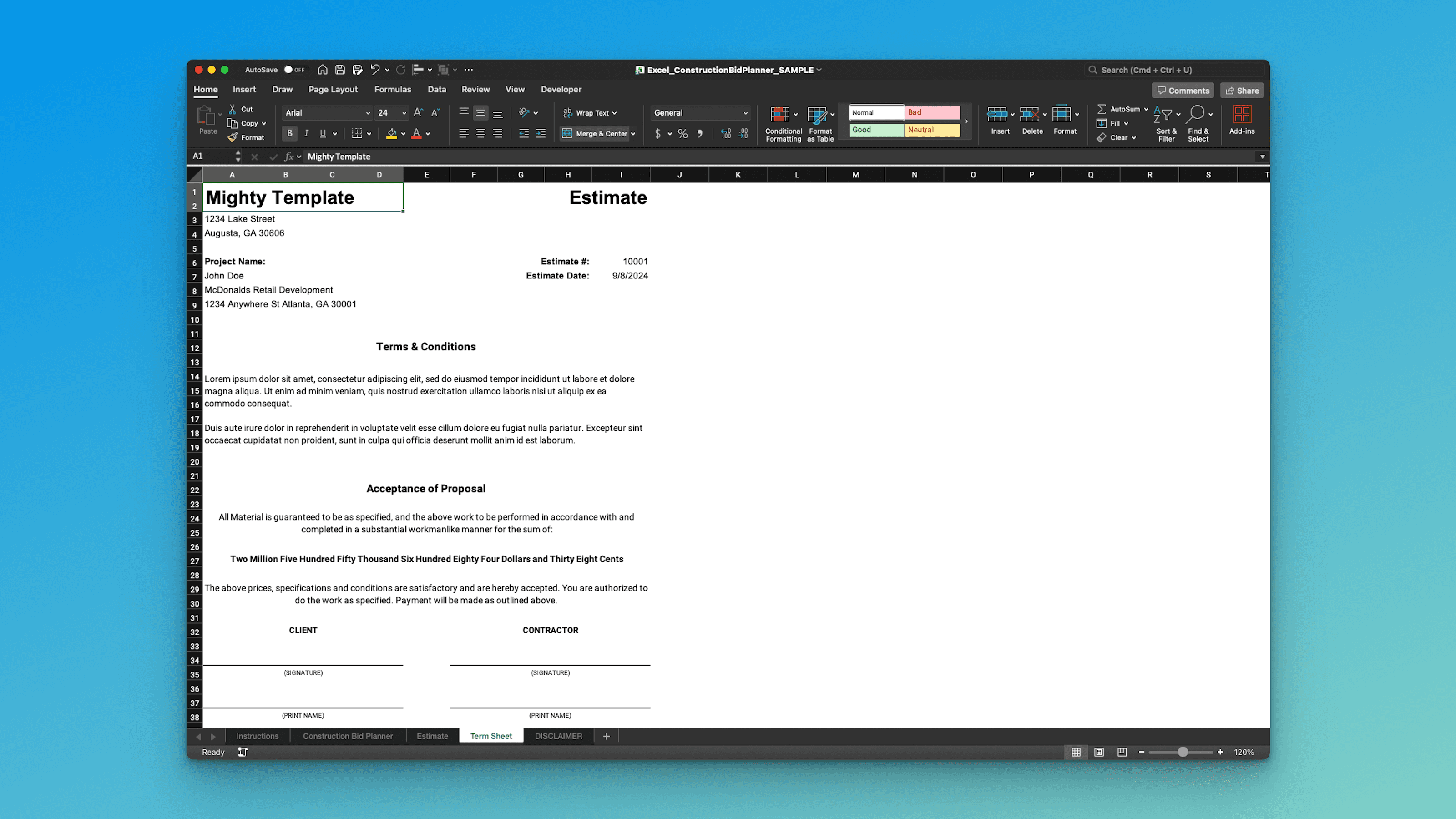
This tab gives you a simple place to outline the key terms for your project.
🗂 Payment terms, schedule expectations, inclusions, exclusions, and any notes you want the client to review before approving the estimate.

It works as a companion document to your bid and estimate.

Why It Works

The layout is clean and customizable.
✏️ You can edit the wording, add rows, remove rows, and tailor it to match the type of work you perform.

This tab is meant to support your estimate, not replace a formal contract if your project requires one.

Try This in Your Template

Enter Your Terms
Go through each section and fill it in with the details that apply to your project.
Common entries include:
• Payment terms
• Timeline expectations
• Scope notes
• Inclusions and exclusions
• Warranty or quality notes
• Any job specific clarifications

Customize as Needed
🧩 Because it is a spreadsheet, you can add more rows, change headings, rewrite language, or format it to match your standard proposal style.

Prepare for Delivery
Once your term sheet is complete, you can:
• Print it
• Export it as PDF
• Include it along with your estimate when sending a proposal
• Copy and paste text into another document if needed

If you use the same terms often, you can duplicate this tab and create multiple versions tailored to different types of clients.

Tips for Success

• 🧾 Keep the language simple and clear to prevent misunderstandings
• 🔄 Match your term sheet to the scope outlined in your Planner Tab and Estimate Tab
• 📁 Save a version that works well for your business and reuse it for future projects

Common Questions Answered Clearly

Still have questions? Here are clear answers to the most common ones.

Can I use this for any type of construction work?

Can I use this for any type of construction work?

Is this compatible with both Excel and Google Sheets?

Is this compatible with both Excel and Google Sheets?

Can I change the markup percentages and line items?

Can I change the markup percentages and line items?

Does this template calculate totals automatically?

Does this template calculate totals automatically?

Can I print or export the estimate to send to clients?

Can I print or export the estimate to send to clients?

How many rows can I use, and can I add more?

How many rows can I use, and can I add more?

How does this template help improve my bids?

How does this template help improve my bids?

What’s the difference between this and a standard estimate template?

What’s the difference between this and a standard estimate template?

Can I use this template for subcontractor quotes or multiple bids?

Can I use this template for subcontractor quotes or multiple bids?

Do you offer refunds?

Do you offer refunds?